
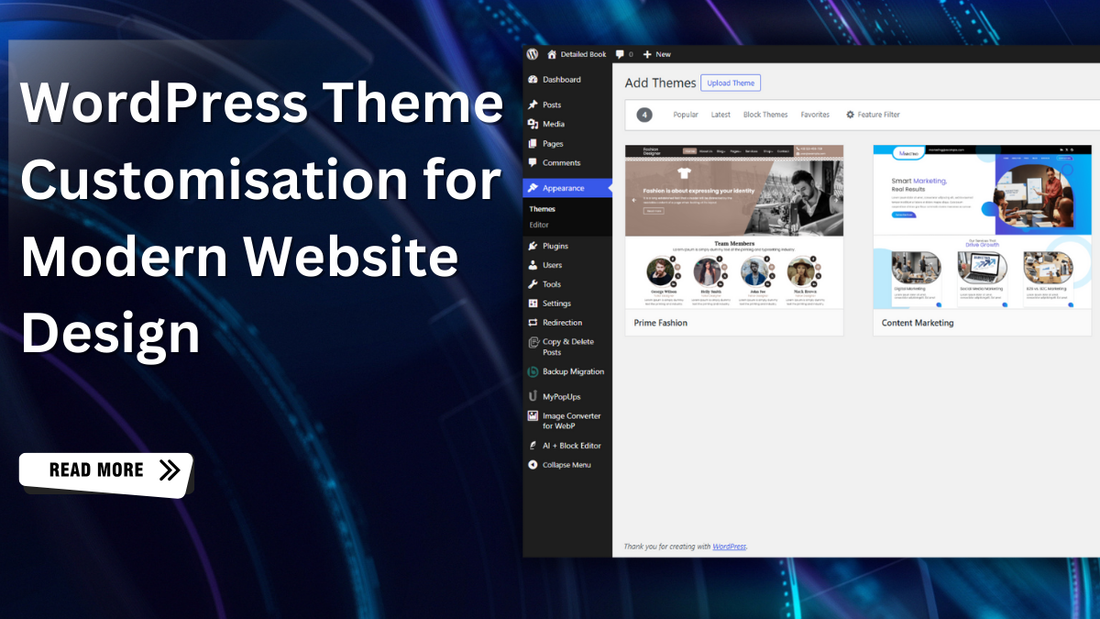
WordPress Theme Customisation for Modern Website Design
WordPress theme customization is the process of modifying your website’s design, layout, and visual elements to match your brand and goals, without necessarily touching complex code. While thousands of free and premium WordPress themes are available, using a theme “as is” often makes your website look generic and limits its functionality. Customization allows you to create a unique, user-friendly website that stands out and delivers a better experience to visitors.
For beginners, theme customization might seem overwhelming, especially with options like the WordPress Customizer, page builders, widgets, and custom CSS. However, once you understand the basics, it becomes a simple and structured process. From changing colours and fonts to adjusting layouts and adding custom sections, WordPress provides multiple beginner-friendly tools to help you personalize your site.
In this complete step-by-step guide, you’ll learn how to customize a WordPress theme safely and effectively. Whether you’re building a personal blog, business website, or content platform, this guide will walk you through essential customization methods, best practices, and common mistakes to avoid, helping you design a professional-looking website without breaking anything.
What is WordPress Theme Customization?
WordPress theme customization is the process of modifying the design, layout, and appearance of a WordPress website to match your specific needs, brand identity, and functionality requirements. Instead of using a theme exactly as it comes, customization allows you to personalize how your website looks and behaves.
This can include simple changes, such as updating colors, fonts, logos, and menus, as well as more advanced adjustments, including modifying page layouts, headers, and footers, and adding custom features. Utilizing must use WordPress plugins offers several beginner-friendly ways to customise a theme, alongside the Block Editor (Gutenberg), widgets, menus, and page builders, often without needing any coding skills.
For users with technical knowledge, theme customization may also involve adding custom CSS, creating a child theme, or editing theme files safely. The goal of WordPress theme customization is to create a unique, user-friendly, and responsive website while maintaining performance, security, and future update compatibility.
Why Customize a WordPress Theme?
Customizing a WordPress theme goes beyond visual appeal; it helps you create a website that truly represents your brand and functions exactly the way you want. Here are the key reasons why WordPress theme customisation is important:
- Create a Unique Brand Identity:Using a default theme can make your website look similar to thousands of others. Customisation allows you to adjust colours, fonts, layouts, and design elements so your site reflects your brand’s personality and builds trust with visitors.
- Improve User Experience (UX):A customised theme lets you organise content more effectively, improve navigation, and optimise page layouts. This makes it easier for users to find information, stay longer on your site, and take action.
- Better Performance and Speed:By customising only the features you need, you can remove unnecessary elements that slow down your website. A cleaner, optimised theme improves loading speed and overall performance.
- Enhance SEO and Visibility:Theme customisation helps you optimise headings, layouts, and mobile responsiveness, key factors that influence search engine rankings. A well-structured theme improves crawlability and boosts SEO results.
- Mobile-Friendly Design:With more users browsing on mobile devices, customisation ensures your theme looks and works perfectly across all screen sizes. Responsive adjustments improve usability and reduce bounce rates.
- Add Required Functionality:Every website has different needs. Customising a WordPress theme allows you to integrate features like contact forms, landing pages, funnels, or custom widgets without relying heavily on extra plugins.
- Scale Your Website Easily: As your website grows, using the best WordPress Bootstrap themes makes it easier to add new pages, features, or design changes without switching themes, saving time and avoiding compatibility issues.
WordPress Theme Customisation - Multiple Methods to Consider
WordPress offers several ways to customise a theme, allowing beginners and advanced users alike to design websites without limitations. Depending on your technical skills, project requirements, and long-term goals, you can choose one or combine multiple methods for the best results. Below are the most effective WordPress theme customisation methods to consider:
Method 1: WordPress Theme Customisation Using WordPress Customiser

The WordPress Customizer is a built-in tool that allows you to change your theme’s appearance and see those changes in real-time before you publish them.
While WordPress is moving toward the "Site Editor" for modern block themes, the Customizer remains the primary tool for Classic themes and is still available for basic tasks in block themes.
1. How to Access the Customizer
- To get started, log in to your WordPress dashboard and navigate to:
- Appearance and Customize
2. Core Customizer Features:While every theme adds its own unique options, most themes include these standard settings:
Site Identity
- Logo: Upload your site's main branding image.
- Site Title & Tagline: Change the text that appears in browser tabs and headers.
- Site Icon: Upload a small image that appears next to your site name in browser tabs.
Menus
- Create and manage your navigation bars.
- Drag and drop items to create sub-menus.
- Assign menus to specific locations.
Widgets: Add content blocks to predefined areas like your Sidebar or Footer.
Homepage Settings
- Latest Posts: Shows your blog feed on the home page.
- Static Page: Choose a specific page you designed to be your homepage.
Additional CSS: This is the "safe zone" for code. If you want to change something the theme options don't allow, you can paste CSS snippets here.
Method 2: WordPress Theme Customisation Using the Block Editor

Customizing a WordPress theme using the Block Editor, also known as Full Site Editing or FSE, is the modern standard. Unlike the old Customizer, which only let you change settings provided by the theme developer, the Block Editor treats your entire website, including headers and footers, as a canvas made of blocks. Here is how to master theme customization using the Block Editor.
1. Accessing the Site Editor:To begin, your theme must be a Block Theme.
- Go to Appearance and Editor.
- This opens a sidebar with five main categories: Navigation, Styles, Pages, Templates, and Patterns.
2. Global Styles: The Design System:The Styles panel is your "command centre" for site-wide branding. It ensures consistency across every page.
- Style Variations: Many themes come with pre-designed colour and typography sets. Click Browse Styles to instantly flip your site from Light to Dark or Minimalist to Bold.
- Typography: Set the default fonts, sizes, and line heights for Text, Links, Headings, and Buttons.
- Colours: Define your site's palette. You can edit the Theme colours or add your own Custom colours that will then be available in every block's settings.
- Blocks: This is a hidden gem. You can set a style for a specific block so you don't have to style them individually every time.
3. Customizing Templates & Parts:Templates define the structure of your pages.
- Templates: Select a template like Single Post. You can move the Post Title, add a Featured Image block, or change the sidebar layout visually.
- Template Parts: These are sections that repeat across the site, mainly Headers and Footers.
- Click on the Header part to edit it.
- Add a Site Logo block, a Navigation block, and perhaps a Social Icons block.
- Once you save, this header updates across every page on your site.
4. Using Block Patterns:Patterns are pre-arranged groups of blocks that match your theme's design.
- Click the + in the top left.
- Switch to the Patterns tab.
- Drag a pattern onto your page. It’s fully customizable; you can swap images, change text, and move blocks within the pattern.
5. The Navigation Block
- Managing menus in the Block Editor is different from the old "Menus" screen.
- Inside a header or page, add the Navigation Block.
- You can add links, search bars, and even sub-menus directly in the editor.
Method 3: WordPress Theme Customisation Using Page Builder

Page builders provide one of the most popular and flexible ways to customize WordPress themes. They allow you to design pages visually using a drag-and-drop interface, eliminating the need for coding knowledge. This method is ideal for beginners, marketers, and businesses that want full design control without touching theme files.
Page builders work with most WordPress themes and are especially useful for creating custom layouts, landing pages, and sales funnels.
A page builder is a plugin that replaces or extends the default WordPress editor, allowing you to build layouts using visual elements. Popular WordPress Page Builders include:
- Elementor
- Beaver Builder
- Divi Builder
- WPBakery
- Bricks Builder
Using a page builder typically follows this 4-step process:
- The Canvas Choice: You can choose to edit a single page or use the Theme Builder mode to replace the theme's header, footer, and post templates entirely.
- Drag-and-Drop Widgets: You drag elements from a sidebar directly onto your page.
- Visual Styling: You click on an element to change its colours, fonts, margins, and entrance animations in real-time.
- Responsive Tweaks: You can switch to Mobile View within the builder to hide certain elements or change font sizes specifically for phone users.
Best Practices for WordPress Theme Customization
Customizing a WordPress theme helps you create a unique, functional, and user-friendly website. However, improper customization can lead to performance issues, security risks, and update conflicts. Following best practices ensures your website remains fast, secure, and scalable in the long run. Below are the essential best practices to follow when customizing a WordPress theme:
1. Always Use a Child Theme: Never edit a theme’s core files directly. A child theme allows you to:
- Safely modify templates and styles
- Preserve changes during theme updates
- Maintain long-term stability
2. Choose the Right Theme from the Start: Select a theme that aligns with your website’s purpose. Look for:
- Clean and lightweight code
- Regular updates and good support
- Compatibility with page builders or block editor
- Customisation flexibility
- A well-coded theme reduces the need for heavy modifications later.
3. Backup Your Website Before Making Changes: Always create a full backup before starting customisation. Tobackup WordPress website manually includes files, the database, and media uploads. This ensures you can quickly restore your site if something goes wrong.
4. Use the Right Customization Method
- Avoid overcomplicating your workflow.
- Use WordPress Customizer for basic styling
- Use the Block Editor for layout-based customization
- Use Page Builders for complex designs
- Use Custom CSS for small tweaks
Choosing the right method improves performance and maintainability.
5. Keep Performance in Mind
Heavy customization can slow down your website. Follow these tips:
- Avoid excessive plugins
- Optimize images
- Minify CSS and JavaScript
- Use caching and a CDN
- Performance directly impacts SEO and user experience.
Common Mistakes to Avoid While WordPress Theme Customisation
Customizing a WordPress theme is exciting, but it is also the most common stage where things go wrong, from losing all your work during an update to accidentally "breaking" your site's layout. Here are the most critical mistakes to avoid in 2025.
- Editing Parent Theme Files Directly: This is the #1 mistake beginners make. If you edit the code inside your main theme folder, all your changes will be deleted the next time that theme releases an update. Always use a Child Theme or the Additional CSS box in the Customizer. For PHP functions, use a Code Snippets plugin to keep your changes safe and independent of the theme.
- Neglecting Mobile Responsiveness: It is easy to get caught up making a site look perfect on your large desktop monitor. However, with over 60% of web traffic now on mobile, failing to use mobile friendly WordPress themes will hurt your SEO and user experience. Regularly toggle the Mobile Preview icon in the editor. Ensure your buttons are large enough for thumbs and that text doesn't overlap on smaller screens.
- Choosing Bloated Themes: Flashy demo sites with dozens of pre-installed sliders and animations are tempting, but they often come with excessive bloat and code that slows down your site. Prioritise Lightweight Themes. You can always add features later, but it’s hard to remove speed-killing code from a heavy theme.
- Over-Using Plugins for Simple Tweaks : Many users install a new plugin every time they want a small change. This creates security risks and slows performance. Check if the feature is already built into the Block Editor or Site Editor. If it's a simple CSS change, use the Customizer instead of a plugin.
- Working on a Live Site : Making major layout changes or pasting code into a live website is digital skydiving without a parachute. One small syntax error can result in the White Screen of Death. Use a Staging Environment. Most modern hosts provide a private "clone" of your site where you can break things safely. Once it looks perfect, you can "push" those changes to the live site with one click.
- Ignoring Image Optimisation : High-resolution images look great, but unoptimized files will destroy your page speed. Always resize images to the actual dimensions needed. Convert them to WebP format and run them through a compressor like TinyPNG before uploading.
Conclusion
WordPress theme customization doesn’t have to be complicated, even for beginners. With the right approach and tools, you can transform a basic theme into a professional, visually appealing website that reflects your brand and goals. From using a WP theme bundle and Block Editor to leveraging page builders and following best practices, each method offers unique advantages depending on your needs and skill level.
The key is to start simple, avoid common mistakes, and focus on consistency, performance, and usability. As your confidence grows, you can gradually explore advanced customization options like child themes, custom CSS, and template editing without risking your site’s stability. Ultimately, successful WordPress theme customization is about balancing creativity with functionality. By applying the steps outlined in this guide, beginners can build flexible, scalable, and future-ready websites with ease.
Ignite Theme Blog
Buy All our Premium Themes just at $79


- Choosing a selection results in a full page refresh.
- Opens in a new window.